 Wristvia
 uses an encrypted nearby Bluetooth link for selected Android alerts. Internet Backup is a separate, optional route requiring approval on both devices. This is a prototype explanation; there is no public download yet.
What the current prototype needs
The Android app requires Android 13 or later and Bluetooth Low Energy. Physical evidence comes from one Honor phone and an Apple Watch Series 11. The watch retains its existing iPhone pairing; Wristvia does not pair Apple Watch to Android at the system level.
The current watch project targets watchOS 10 or later, but that build setting is not a tested compatibility list. See requirements and device limits.
1. Establish a nearby link
The current setup creates a link code on the watch. The Android phone scans it, both devices approve the link, and setup checks an authenticated Bluetooth exchange. Internet Backup is offered separately after the notification test. Skipping backup keeps nearby features available.
The Bluetooth-first setup is implemented and the preserved test pair exchanges encrypted data. A fresh, store-installed scan-to-alert setup without a Mac remains unqualified. Keep the watch’s existing Apple pairing.
2. Choose apps and preview privacy
Grant Android notification access, then choose the sources whose eligible notifications may be forwarded. A source app must first post an eligible Android notification. Notification access, source selection, temporary mutes and preview privacy can each affect what arrives.
Phone preview settings and watch privacy settings control visible content. Generic previews hide identifying detail. Replies and notification actions have their own opt-in; forwarding consent alone does not enable them.
3. Send nearby or use approved backup
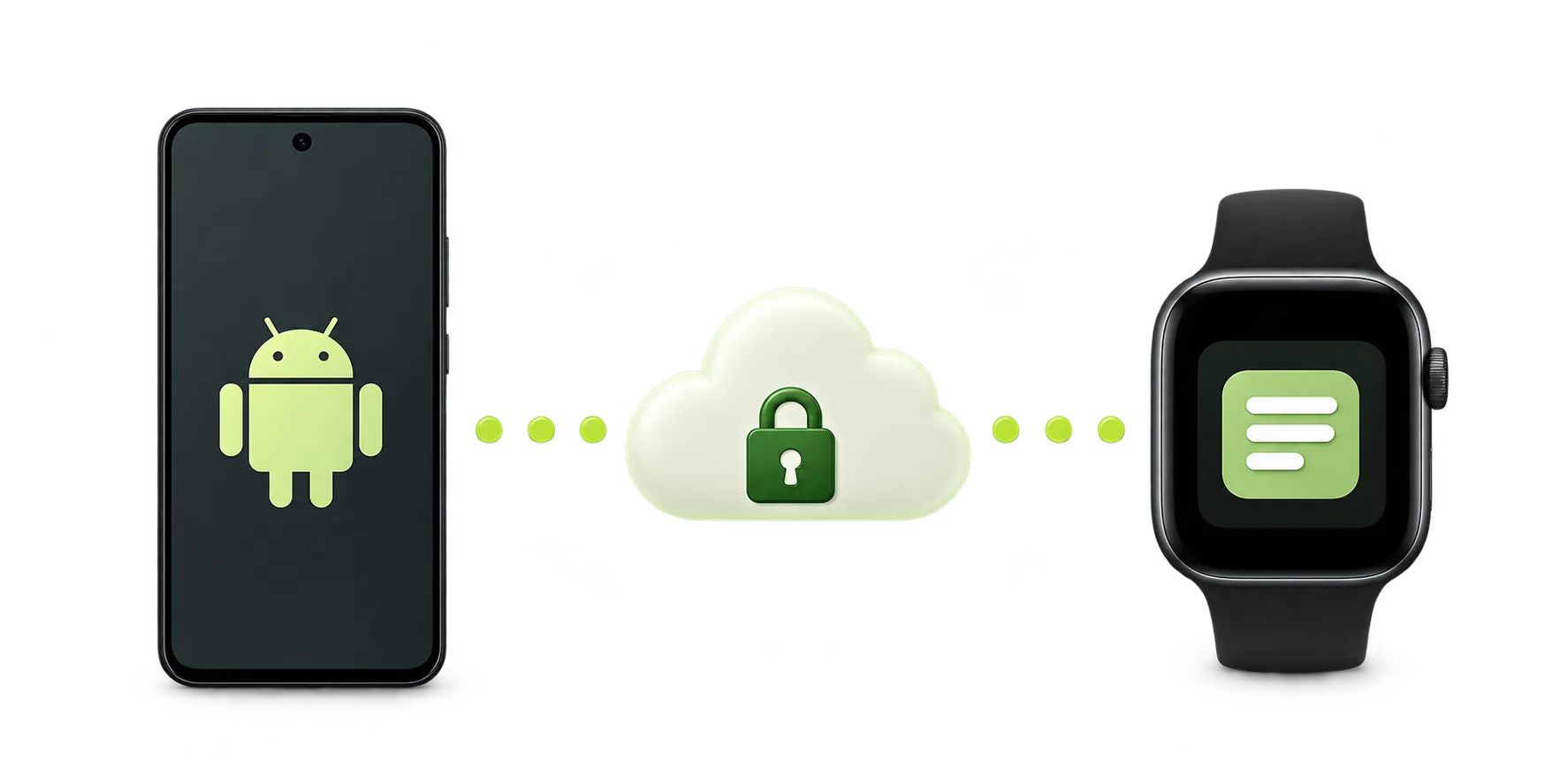
Nearby notifications carry an encrypted preview directly over Bluetooth. When Internet Backup is enabled on both devices, eligible updates can use the internet relay while apart, with a working internet connection at each end. Backup permission is separate from Wi-Fi password sharing.
The relay handles encrypted payloads and routing metadata. Device-side encryption is designed to keep preview plaintext out of the relay; independent security review remains open. Read the app privacy policy.
4. Read the alert and saved preview
The watch can display the alert and retain a short-lived preview in Wristvia’s inbox. Internet catch-up can retrieve an eligible, unexpired preview while the watch app runs. Expired or cancelled previews may no longer be available.
Apple push acceptance, a saved watch receipt and a person seeing an alert are separate outcomes. A receipt does not prove sound, haptics or wrist presentation. The watchOS short-look header remains Wristvia; source app artwork can appear inside the detailed notification when privacy permits.
What still needs qualification
A Messenger-labelled synthetic test with Internet Backup off showed its source icon in the physical watch list and expanded alert on 1 November. This establishes that test’s nearby presentation, not real Messenger delivery or all-day reliability.
Long idle, unplugged and overnight notification delivery, range recovery, duplicates, battery impact and other devices still need checks. For missed alerts, use the notification checklist. For measured scope, read the device report.
WhatsApp, replies and calls are separate questions
Wristvia can only forward an eligible notification that the selected Android source actually posts. A WhatsApp-labelled preview is not a full WhatsApp watch app or synced chat history. The project has not established general reply sending, voice messages or Android call audio through Apple Watch.
Reply controls depend on the original live Android notification exposing a supported action and require a separate opt-in and current connection. Visible buttons do not prove that a message was sent or received. Read WhatsApp and reply limits before relying on them.